> ## Documentation Index
> Fetch the complete documentation index at: https://cachi-docs.arisucloud.com/llms.txt
> Use this file to discover all available pages before exploring further.

# Tutorial

> Quick Start Guide for Cachi

<Steps>
  <Step title="Preparation">
    Please refer to the **[Importing](/en/cachi/import)** section to import charts and skins first.
  </Step>

  <Step title="Song Selection">
    Tap the screen to enter the song selection menu.

    The left side shows basic info like **Title, Difficulty Range, Source**, etc. Tap any song button to select a chart. Currently, the difficulty star rating calculation references osu! Catch the Beat mode. A new algorithm optimized for mobile is under development.
  </Step>

  <Step title="Search & Favorites">
    Tap the star icon before the song button to **Add to Favorites**. The top header provides basic **Search and Sort** functions.
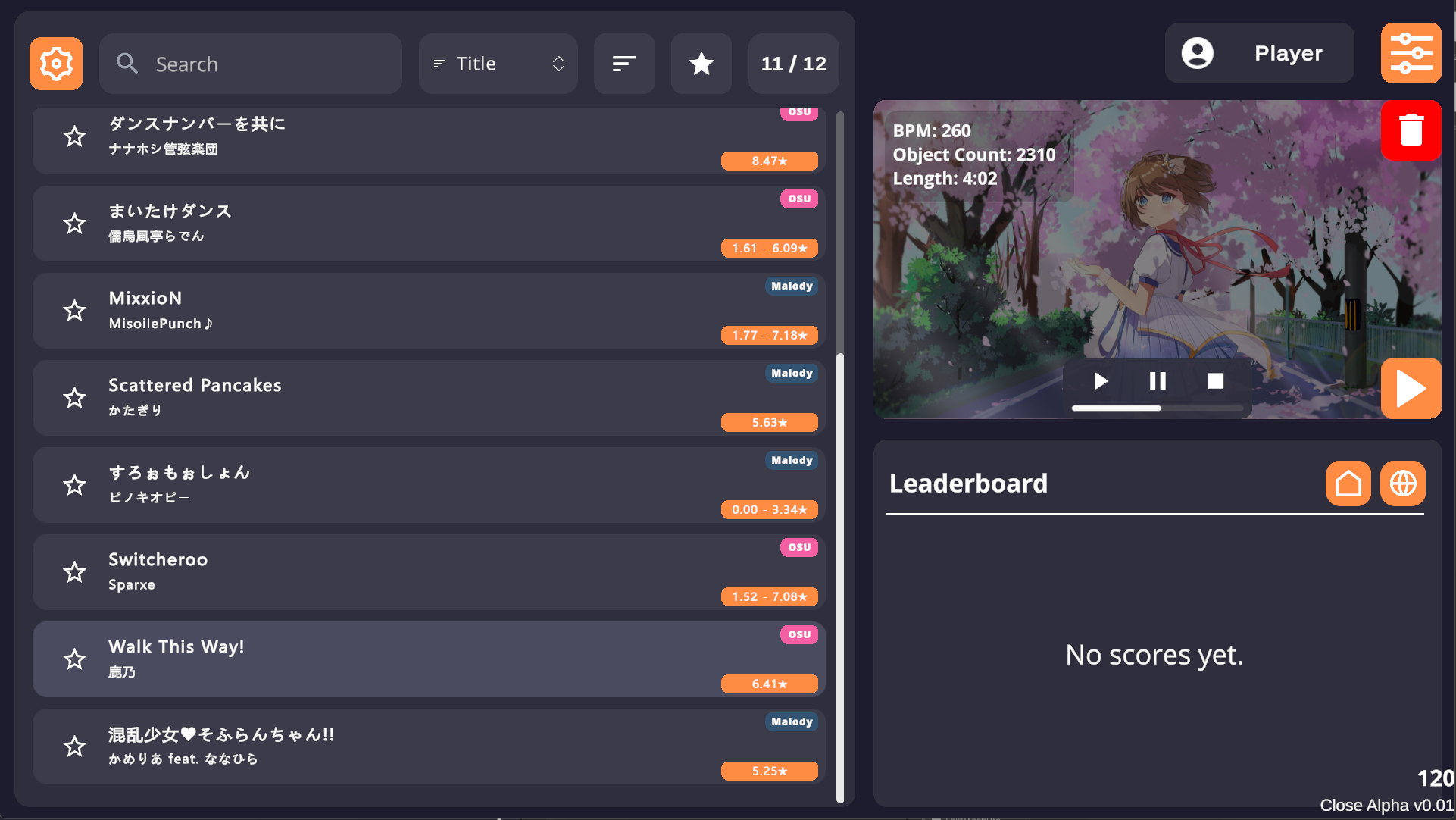
    <Frame caption="Song Selection Menu">
      <img src="https://mintcdn.com/irisugame/zl-5DKXn93kATmfm/images/cachi/QQ20251121-160737.png?fit=max&auto=format&n=zl-5DKXn93kATmfm&q=85&s=256812799ea9911c4a54f859d38917ee" alt="Song Selection" width="1922" height="1082" data-path="images/cachi/QQ20251121-160737.png" />
    </Frame>
  </Step>

  <Step title="Mod Settings">
    After selecting a chart, tap the orange Start button on the right to open the Mod settings menu, where you can customize various settings.
  </Step>

  <Step title="Start Game">
    After adjusting settings, tap the **Start Button** at the bottom of the Mod panel to start. Tap the **Robot Button** for **AUTO** demonstration.
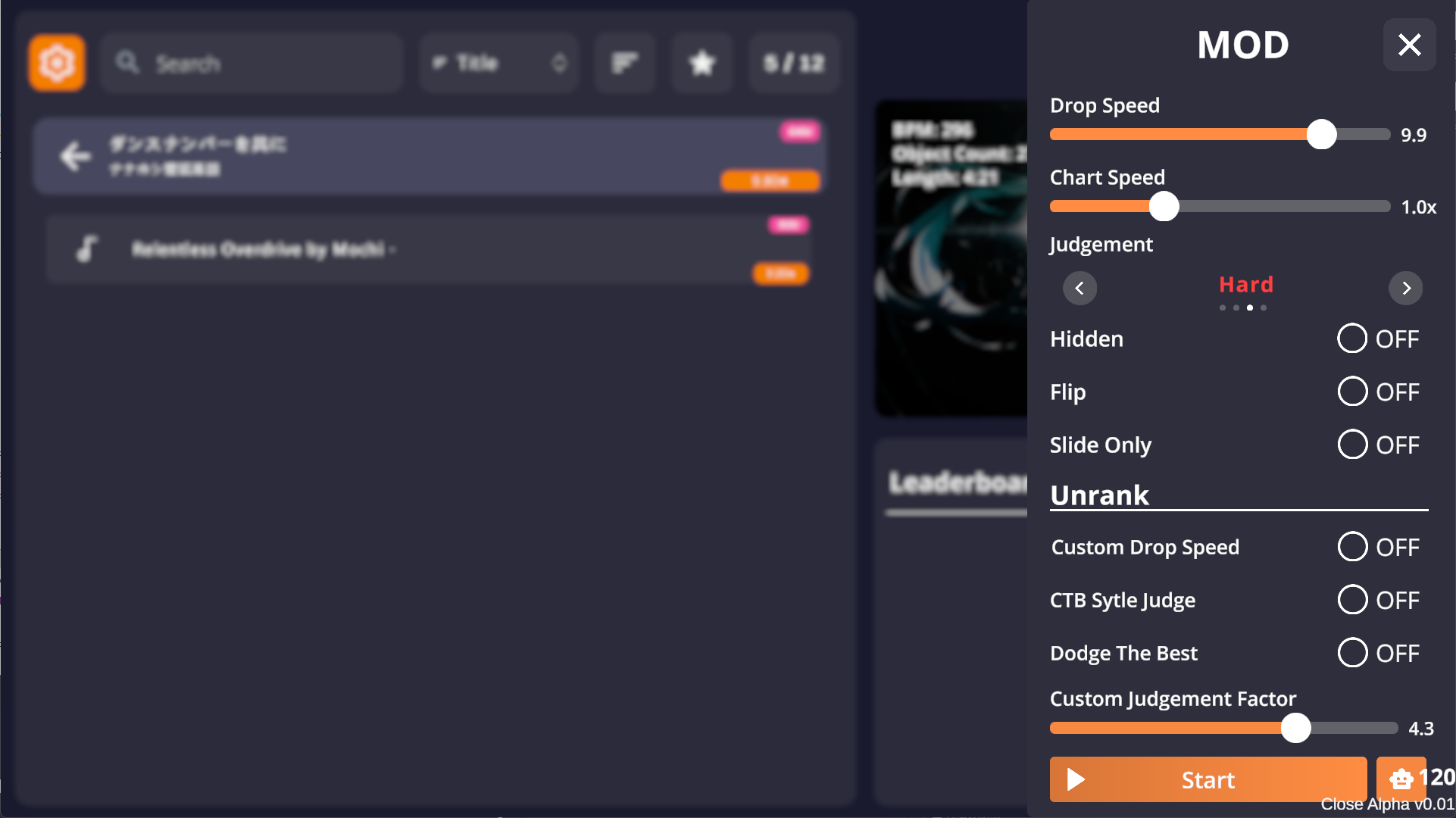
    <Frame caption="Mod Settings & Start">
      <img src="https://mintcdn.com/irisugame/zl-5DKXn93kATmfm/images/cachi/QQ20251121-161952.png?fit=max&auto=format&n=zl-5DKXn93kATmfm&q=85&s=a281edb154d0e067c6e098fa0514a139" alt="Mod Settings" width="1922" height="1080" data-path="images/cachi/QQ20251121-161952.png" />
    </Frame>
  </Step>

  <Step title="System Settings">
    Tap the **Gear Icon** next to the search box in the song selection menu to open the system settings sidebar.
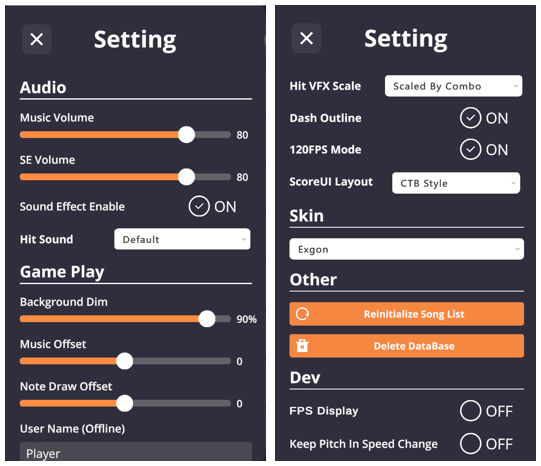
    <Frame caption="System Settings Sidebar">
      <img src="https://mintcdn.com/irisugame/zl-5DKXn93kATmfm/images/cachi/image-20251123161048921.png?fit=max&auto=format&n=zl-5DKXn93kATmfm&q=85&s=fa7cb778d95b044a5de9fb9475aee746" alt="System Settings" width="541" height="466" data-path="images/cachi/image-20251123161048921.png" />
    </Frame>
  </Step>
</Steps>

## Screenshots

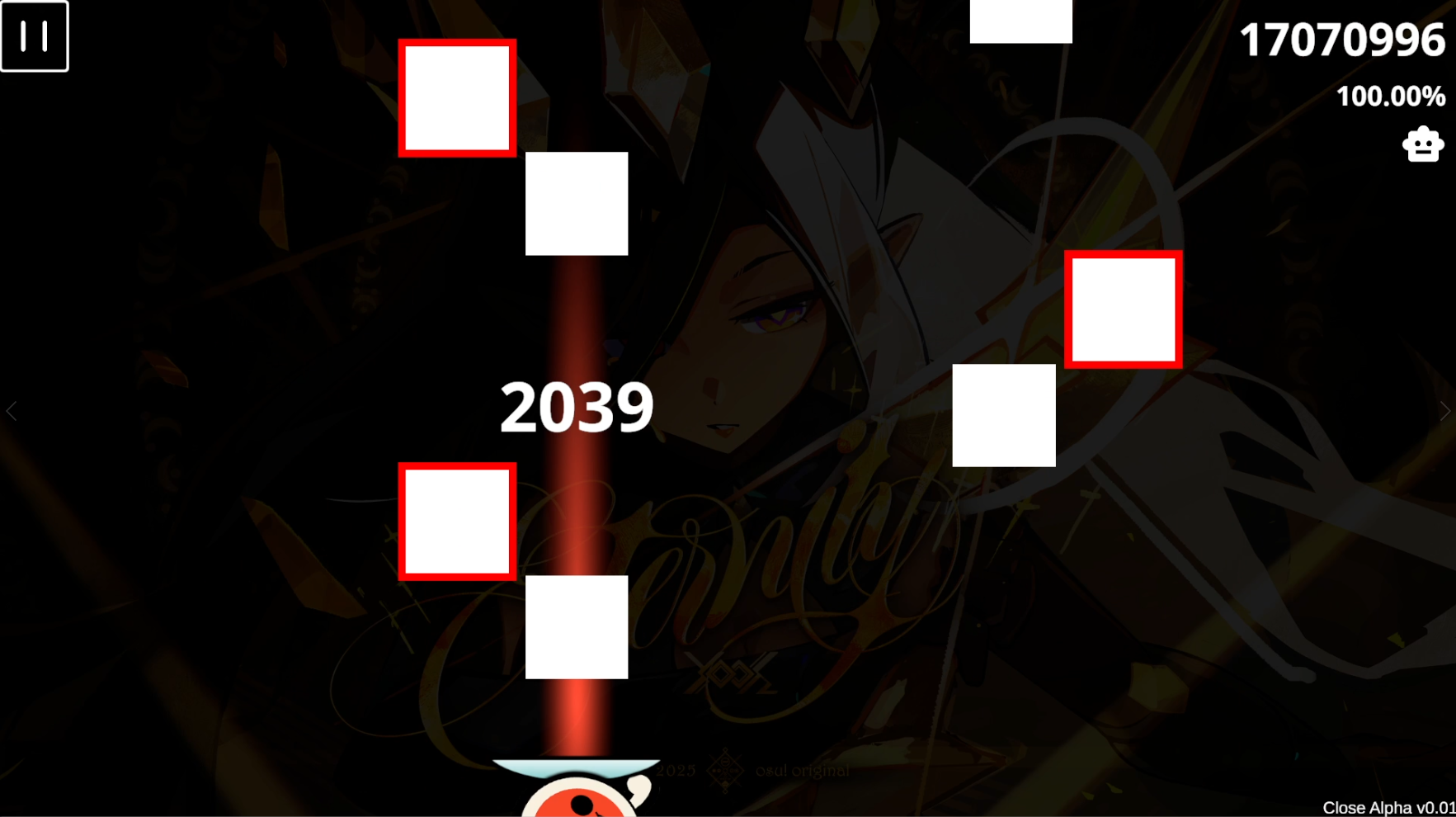
<Frame caption="Screenshot 1">
  <img src="https://mintcdn.com/irisugame/zl-5DKXn93kATmfm/images/cachi/QQ20251121-180226.png?fit=max&auto=format&n=zl-5DKXn93kATmfm&q=85&s=f98bc5cac6bee8704ea1311c4f80cf98" alt="Screenshot 1" width="1765" height="990" data-path="images/cachi/QQ20251121-180226.png" />
</Frame>

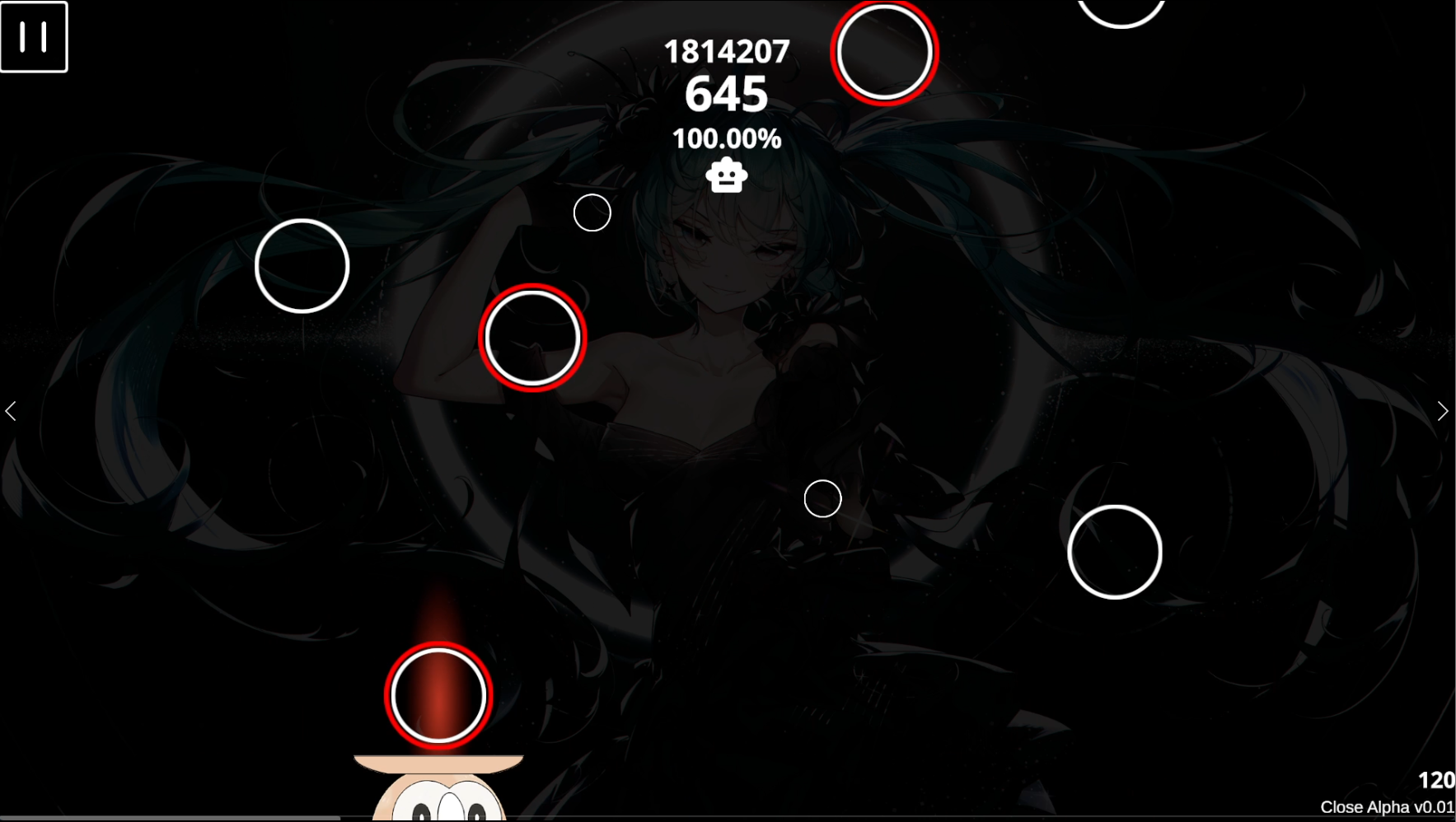
<Frame caption="Screenshot 2">
  <img src="https://mintcdn.com/irisugame/zl-5DKXn93kATmfm/images/cachi/QQ20251121-180356.png?fit=max&auto=format&n=zl-5DKXn93kATmfm&q=85&s=2b45706c251253e1fdc864807add0faf" alt="Screenshot 2" width="1767" height="998" data-path="images/cachi/QQ20251121-180356.png" />
</Frame>

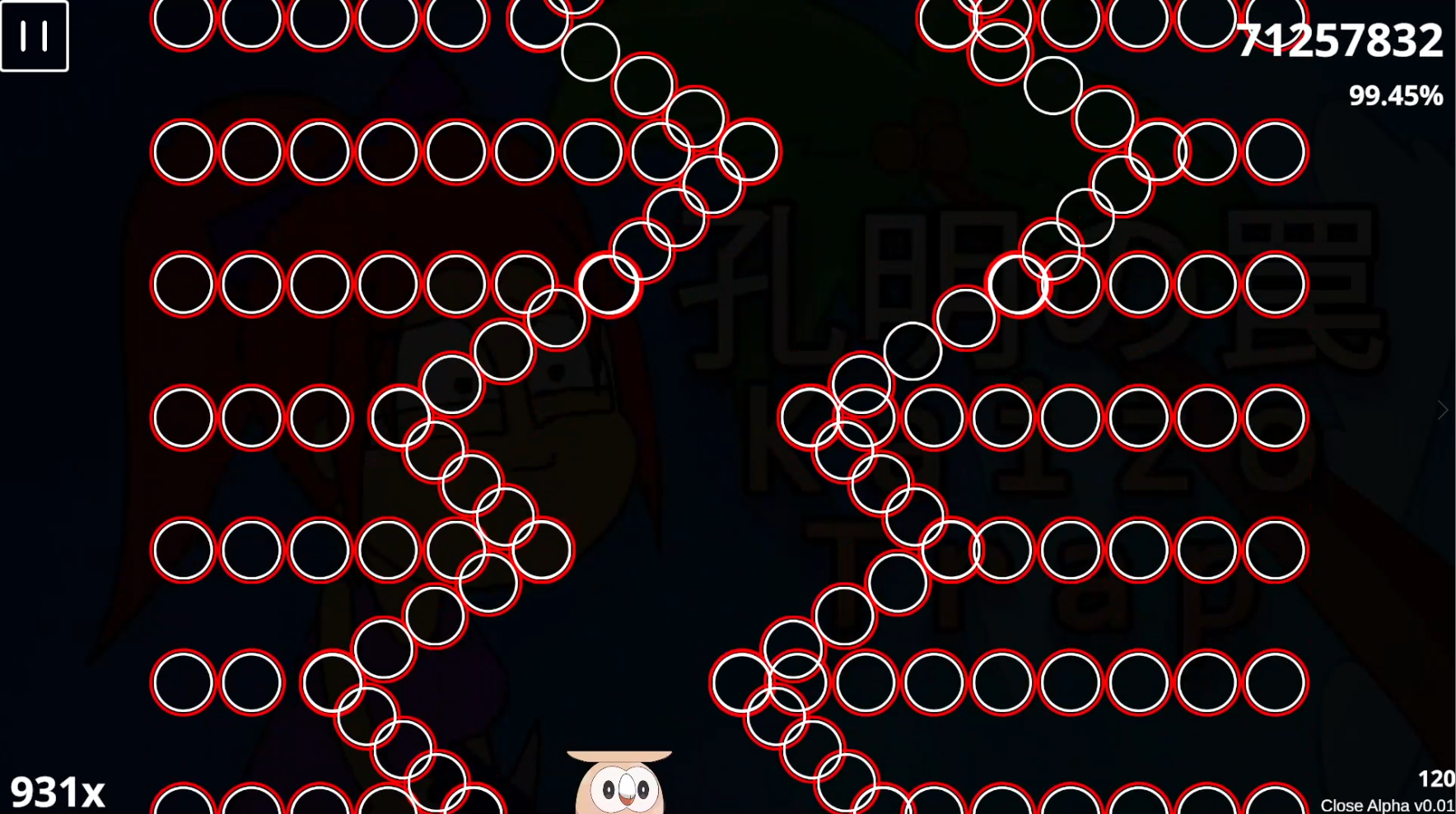
<Frame caption="Screenshot 3">
  <img src="https://mintcdn.com/irisugame/zl-5DKXn93kATmfm/images/cachi/image-20251123151438107.png?fit=max&auto=format&n=zl-5DKXn93kATmfm&q=85&s=fbce6ae3cace496992eb1b43bbb7544b" alt="Screenshot 3" width="1768" height="989" data-path="images/cachi/image-20251123151438107.png" />
</Frame>